Tuesday, March 9, 2010

Tiny Shoppers

New Group for Tinies!

Shoppers: Are you looking to keep up with the latest in tiny fashions, accessories, home and garden items, and other tiny wares? Join this group to get notices from shopkeepers when they release new items!

Shopkeepers: Would you like to announce new items to the tiny community? Join this group to keep tinies in the loop about your new products!

Note: this group is not tied to a particular community. It is for all tiny shoppers and shopkeepers on the grid.

Join!

It's a free group! In Second Life click the Search button at the bottom of your screen, then click on the Groups tab. Type "Tiny Shoppers" in the search box, then click the Join (L$0) to become a member! If SL is being wonky and you can't find the group in search, you can click on my profile (Misa Delight) and then double click on the group name in my group lists. You can also see the group information on the Second Life website.

Flickr group: flickr.com/groups/tinyshoppers/
Blog: tinyshoppers.blogspot.com

Shopkeepers

Do you have a shop that sells Tiny wares? If you are a shopkeeper, please let Misa Delight or Awenbunny Lisle know so they can add you to the shopkeeper role.

Guidelines

If you are a shopkeeper, please follow these guidelines. These are meant to keep the amount of notices to a reasonable amount so that we keep our lovely shoppers from dialog overload!
1. Please post notices at most twice a month (every two weeks).
2. Only post about tiny items, or items that work fine for tinies. This is the only group I know of (so far) that posts about new releases for tiny avatars that isn't tied to one specific community. If you've got a list of new releases that are primarily tiny, but also include some biggie stuff - that's fine. Just don't send out notices that are primarily about humanoid items! There are already tons of groups for that.
3. Please only post about new releases in your stores. However, you can add other information (for example if you are having a sale on older outfits) in your notice as long as it follows the new releases- essentially we don't want a lot of popups about older wares... we primarily want notices about new items!
4. If possible, attach a notecard with a landmark, picture, and more detailed information to your notice. Landmarks so we can easily find your store, a picture so we can see what your new release looks like, and any other information you think is relevant!
5. Posting in chat is fine as long as you don't post the same thing over and over.

If you have any questions about this group please let me know!

Monday, March 8, 2010

March Happiness

New Items at Delight!

The March newsletter just went out with a special hot green Stevebuck's tea to warm you up! It's animated and works with Wynx (and compatible) tinies (wear it to sip your drink).

March@Delight

St. Paddy Outfits

Need an outfit for St. Paddy's? Delight has a long and short dress, satin material, green with shamrock designs. Includes two bags (handbag and clutch), sandal shoes, and a barrette. All for only $200L!

New items in the Delight boards!

Five MM boards - each with a different prize =)

Raglan Shire (hat)
Morning Shire (special Gun Moll hair - green with shamrocks)
Mainland (two locations - right next to each other - one has argyle textures, the other a hat)
Hugmart (hat)

Easter Egg Madness Hunt

March 14th - April 10th: visit the mainland Delight for Humanoids location to pick up a spiffy hat/hair combo for your biggie! Also included are the hats without hair for menfolk or those who want to wear a different hair with the hat =)

Fearless tinies can also pick these up and stretch them to fit since they are mod!

Saturday, March 6, 2010

Super Knit Hair/Hat

Shaggy Hair/Hat Combo

Tiny Avatar Version

Super Soft Knit Hat
11 Hair colors, 5 Pins, and 50+ Knit hat top colors

Humanoid Version

Super Soft Knit Hat
11 Hair colors, 5 Pins, and 50+ Knit hat top colors


Use a menu to change the color of the pins, hair, or the top of the knit hat


There are five pin options: a paw print in green, blue, or purple, and a heart or broken heart


Eleven hair colors available


Over fifty colors to tint the top of the hat

The hat is copy and mod, but make a backup copy of the hat before you resize/modify it just in case!

The Tiny version has three pre-sized options: cat (large), bunneh (small), and ferret (x-small). Each option has hair modified to better suit the faces. The hat has mod permissions so you can resize and edit the hair so it better fits your avatar.

The version for humanoids is mod/copy so you can resize to better fit your avatar.

Sunday, February 14, 2010

Delight Vendors

Buying Options

Delight is switching over to new vendors to offer "buy as gift" and gift card options!

Gift Cards

Gift Cards are available in 50L, 100L, 200L, and 300L values. You can buy something for less than or equal to the value of the card. If there is a remainder, the card will let you know how much you have left and you can use it towards another purchase.

If you would like to buy something that costs more than the value on the card, you will be prompted to pay the remainder.

At this time you can't combine gift cards (so you can't use two 50L cards to buy a 100L item).

How to use:
  1. Wear the gift card
  2. Find a Gift Card Enabled Vendor
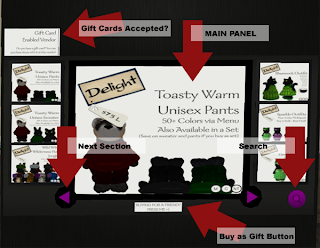
    (a sign in the store will let you know which vendors accept gift cards - see screenshot below)
  3. Find the product on the vendor so the main panel is showing it
    (scroll with arrows or use the search button)
  4. *Important* make sure the main (large) panel is showing the item that you want!
  5. Touch the main panel showing the product
  6. A dialog box should appear asking if you would like to purchase with a gift card

Buy as Gift

If you would like to buy a specific item as a gift for someone, you can use the "buy as gift" option.
How to use:
  1. Find a Vendor that has the "buy for gift" button (see screenshot below)
  2. Find the product on the vendor so the main panel is showing it
    (scroll with arrows or use the search button)
  3. *Important* make sure the main (large) panel is showing the item that you want!
  4. Touch the "buy for gift" button
  5. The vendor should whisper something along the lines of "Please speak the name of the friend you wish to purchase a product as a gift for. I will listen for the next 30 seconds."
  6. Type in the full name of the person you would like to send the gift to. Spelling counts!
  7. You should see a confirmation whispered to you that says the vendor is looking up your friend's key. Once the key has been found it will let you know, and say something along the lines of "The next product you buy from this vendor within the next two minutes will be delivered to them. To cancel this, click this button again. If somebody other than you uses this vendor in the meantime, you will need to enter the name again."
  8. Pay the vendor for the item on the Main Panel
  9. You should see a confirmation that your gift is being sent to the person!


Search

The new vendors have a search function. Click the search icon (see screenshot below) to start the search. The vendor will ask you to type in chat what you are looking for.

Example:
Delight Vendor whispers: Please type what you would like to search for. I will show the first product that matches what you type ...
Misa Delight: mushroom
Delight Vendor whispers: Searching for 'mushroom' ...
Delight Vendor whispers: I have found a match for you; moving the vendor to the product ...

Vendor Information

Delight Vendor

Clockwise from top left:

1. Gift Cards Accepted? Look for the sign that says "Gift Card Enabled Vendor" if you wish to use a gift card to purchase an item. Some vendors do not accept gift cards. If you would like to buy something with a gift card that is in a non-gift-card enabled vendor, please contact Misa Delight!
2. Main Panel This is the item that will be purchased when you pay the vendor. Make sure that you have the right item selected and displayed in the large main panel. If you pay one of the smaller icons, it will still deliver the item in the large main panel!
3. Search Click the search icon to start a search through the vendor's items.
4. Buy as Gift Button If you would like to purchase a specific item as a gift for a friend, click this button to start the process. Make sure that the gift you would like to buy is displayed in the large main panel!
5. Arrows These arrows scroll through sections. Within each section are smaller icons - click one of those to put the product up on the main panel for purchase.

Friday, February 12, 2010

Heart Nommer

2010 Valentine Gift

Free hat in honor of Valentine's Day. Color changes, and has sound clip "Gives me yer heart.... I noms it!"
Nommer of Hearts
Available at the Delight Raglan Shire location!

Thursday, February 4, 2010

Tiny Futon Side Seat

Color Change Futon & Pillows

Over 50 Colors (via Menu)

Seven Prims, Seven Poses

Tiny Futon Side Seat

Changing Colors

To change the color of either the futon or the pillows, click on the base of the futon (the largest shape). If you are the owner, you should now see a blue dialog box with two options: pillows or futon. Each of those options will take you to another menu allowing you to choose a color category, then finally a specific color. You can mix and match colors to create harmonious duets or funky combinations.

Sitting

There are seven poses for tiny avatars. Each shape in the futon has a different tiny sit associated with it. Right-click on one of the parts of the futon and choose sit.
  • Main cushion: Recline on back with feet on arm rest
  • Front Pillow: Sit in center of futon, legs crossed, arms up
  • Right Pillow: Sit on right side of futon against arm rest, one arm up
  • Left Pillow: Sit on left side of futon, legs crossed, arms up
  • Back of Futon Pillow: Recline on side on top of pillows
  • Arm Rest: Recline on side of arm rest towards the back
  • Arm Rest Base: Sit on floor leaning against the base of the arm rest

Permissions

The futon is copy, but it's better to pull a new copy from the inventory instead of shift-dragging. Shift dragging to copy sometimes glitches the poses. If that happens, just delete the futon and pull another out of inventory.

futon

360 View

Free Utility at Peek360

Peek360° is a free utility for viewing virtual worlds via a browser. To test it out I put in a request for the spot near my shop on Morning Shire. Of course, being a tiny, I put in the coordinates my map showed. I was really impressed when I got an in-world IM from one of the Peek360 team letting me know that although the shot was coming out, it works much better when given an altitude of a humanoid avatar. They recommended I fly up a bit and then submit that altitude number. UPDATE: I just got a notice that they changed this so smaller avatars don't have to submit a different altitude!

Here's the first low request:


And here's my second request with a little bit higher altitude. This one is in the west side Raglan Shire:


Another helpful tip: stand at least 8 meters away from the coordinates you submitted if you'd like to be in the pictures!